

This feature is available starting from version 2.3.0
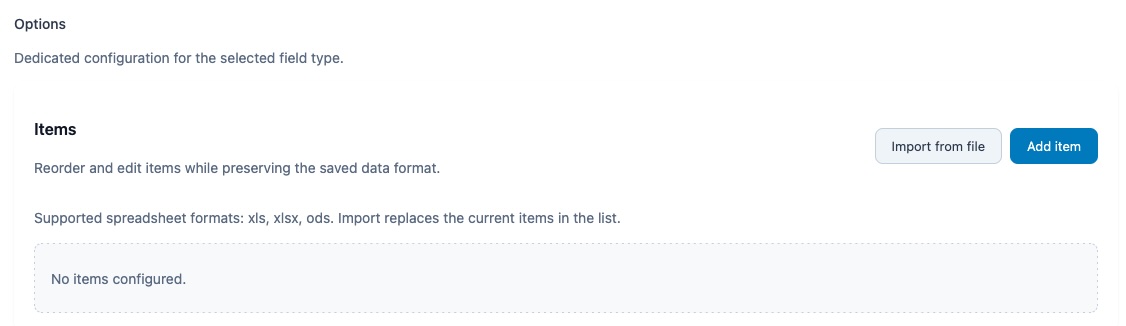
Using this feature you can upload multiple items in List, Radio Group and Image List fields from a spreadsheet file without adding each item manually.
Upload your spreadsheet file
Open the field editor for a List, Radio Group or Image List field. In the Items section, click Import from file and choose an xls, xlsx or ods file.
The import replaces the current items in that field. After the import, the items appear directly in the modern editor so you can review or edit them before saving the field.
The basic structure of the spreadsheet file
The structure of the file should be specified as below:
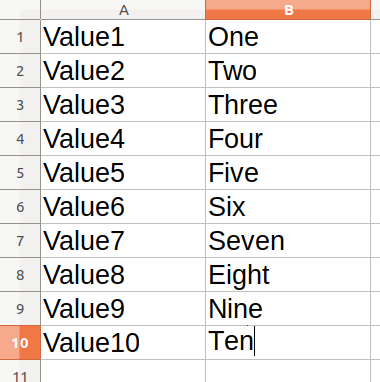
- In column A, Value1 => is the string label to be shown to the customer.
- In column B, One => is the value used by the plugin to do the calculation in the background.
Important note: data must start at the first row and first column, otherwise the plug-in would not be able to get the data from the spreadsheet file.
The file structure could be different if you want to import items on List field, Radio Group field or Image List field:
Spreadsheet structure for List field
An item of a list input field can contain up to 4 attributes and should be placed in the spreadsheet file in this manner:
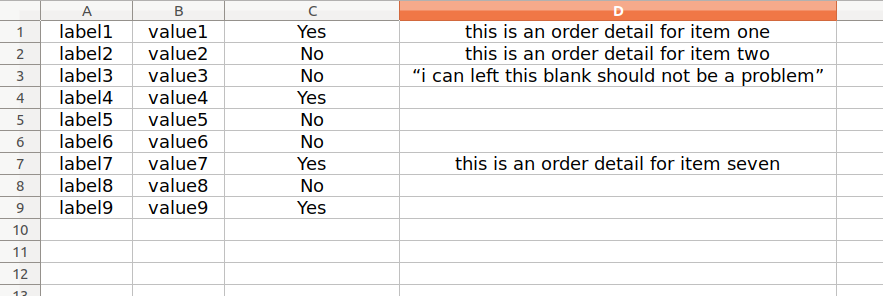
- Column C: It must contain the "Default Option" attribute, as shown in the picture it can take only the string ‘Yes’ or ‘No’ everything else would not take effect. It can be left blank.
- Column D: It must contain the Order Detail, this attribute can contain every type of data. Its purpose is to give more information to the user on the product page for the selected option. It can be left blank as well.
Spreadsheet structure for Radio Group
An item of a radio-group input field can contain up to 7 attributes and should be placed in the spreadsheet file in this manner:

- Column C: It must contain the "Default Option" attribute, as shown in the picture it can take only the string ‘Yes’ or ‘No’ everything else would not take effect. It can be left blank as well.
- Column D: It must contain the "Order Detail", this attribute can contain every type of data. Its purpose is to give more information to the user on the product page for the selected option. It can be left blank as well.
- Column E: It must contain the label position related to the radio button. It can take only two values ‘right’ or ‘left’ everything else would not take effect. It can be left blank as well.
- Column F: It must contain the pop-up message for the purpose of additional information for the user on the product page. It can be left blank as well.
- Column G: It must take the path of the image to be associated with the radio button. The path must be absolute. It can be left blank as well.
Spreadsheet structure for Image List
An item of an Image List field can contain up to 5 attributes and should be placed in the spreadsheet file in this manner:
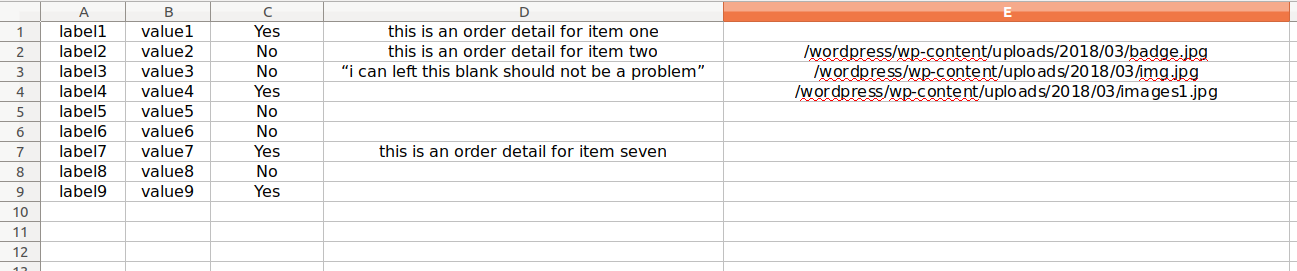
- Column C: It must contain the "Default Option" attribute, as shown in the picture it can take only the string ‘Yes’ or ‘No’ everything else would not take effect. It can be left blank.
- Column D: It must contain the "Order Detail", this attribute can contain every type of data. Its purpose is to give more information to the user on the product page for the related options to select. It can be left blank.
- Column E: It must contain the path of the image associated with the Image List item. The path must be absolute. Be careful: this is a mandatory column.
What happens after import
After you choose the file and confirm the import, the plugin parses the spreadsheet and rebuilds the field items inside the current editor.
You can then reorder the items, change labels, values, order details, tooltips or images, and finally click Save field.